
October 23, 2026
Claude, make me an Editable website
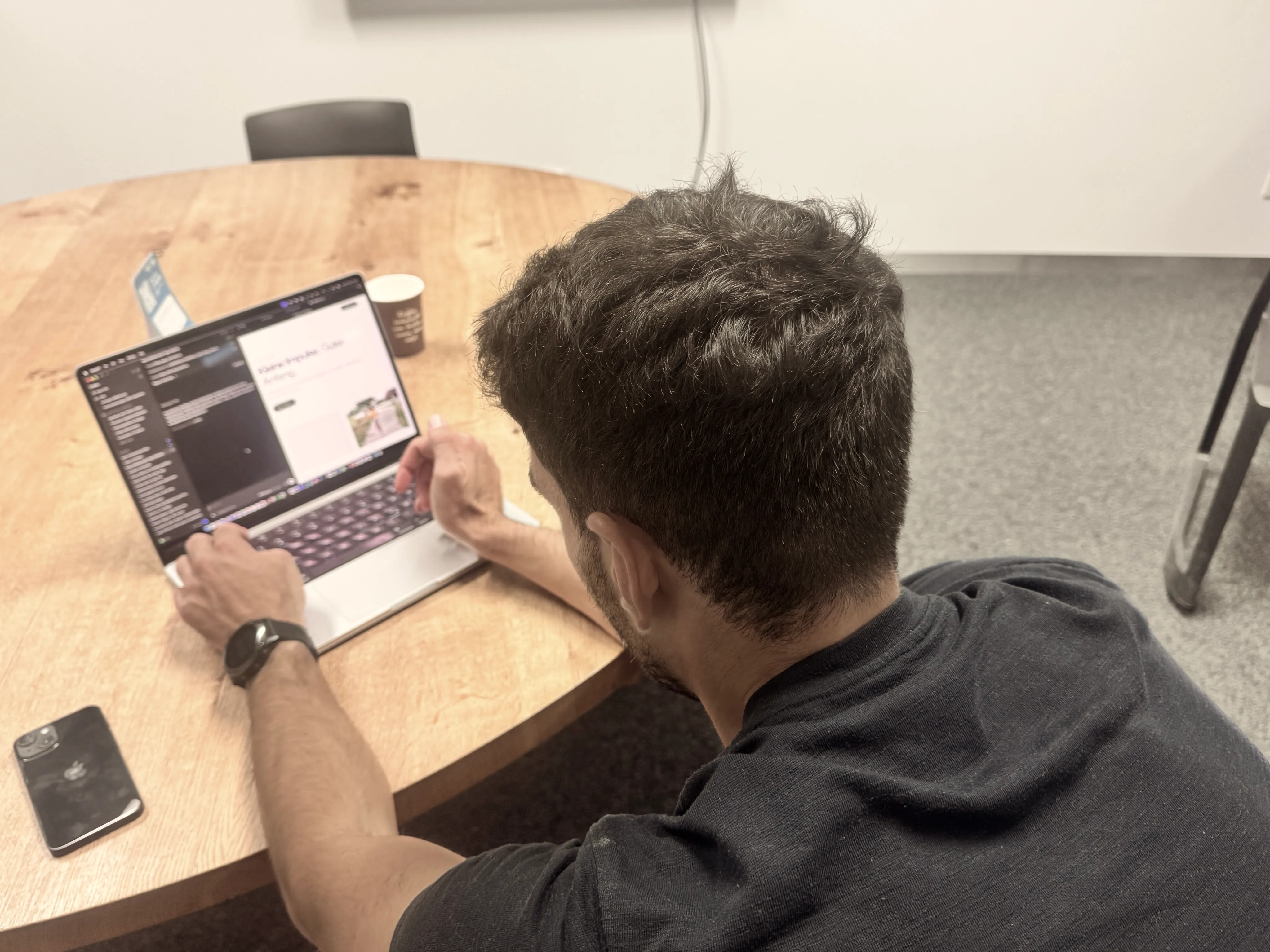
About a month ago I sat down with Felix Hermanutz of YOUB. We met so I could look over his shoulder as he used Editable for the first time. I was expecting him to visit editable.website, open the Quickstart Guide, and follow the installation steps. But to my surprise he just opened his coding agent and prompted something along the lines of "Build me a website with Editable for a sports app. Include a blog and use images from Unsplash." Even more surprising was that after about 25 minutes, a pretty decent website was ready.
When I looked closer at the code, though, I saw quite a few mistakes the agent had made. Some parts of the site were hard-coded (not exactly how an Editable website is supposed to work), and some new data structures had been introduced that wouldn't have been needed at all. So I took this as an opportunity to make Editable more agent-friendly. The next time someone tries what Felix tried, the result ought to be much better. :)
In this post we go from an empty folder to a complete website with a blog, mostly by asking Claude (or Codex).
1. Let Claude set it up
Open the Claude app, switch to the Code tab, and choose an empty folder for your website.
Then ask:
Set up a new Editable website in this folder from the stable branch of https://github.com/michael/editable, following the quickstart in its README. Install anything that's missing, use change-me as the admin password and English as the site's language, and start the development server.
Claude clones Editable, installs it with everything it needs, writes the settings, and starts the development server. Open localhost:5173, hold ⌘ (Mac) or Ctrl (Windows) and press E, and log in with change-me.
In the terminal, run claude in an empty folder instead. With Codex, open the folder in the Codex app or run codex: the prompts in this post work the same. And if you prefer to do it by hand, the quickstart lists every command.
2. Pick your colors
Tell Claude what you're after. For example:
Give this site a warm, earthy color palette for a small ceramics studio: an off-white background, dark brown text, and a terracotta accent. Update the color tokens in src/app.css.
Claude edits the color tokens in src/app.css, and the dev server shows the result right away. localhost:5173/design system shows every color, button, and type style on one page, so it's the best place to check the new palette. Not quite right? Tell Claude what to change.
3. Deploy your empty site
Editable runs on Fly.io out of the box. You need an account there with a credit card on file, but a site like this costs you nothing: Fly waives invoices under $5. Ask Claude to put it there:
Deploy this site to Fly.io, following the Deploy section of the README. Pick an app name that's still available, and walk me through installing flyctl and signing up for Fly.io if needed. Generate a strong admin password for the live site, and when the deploy is done, show me the site's address and the password.
If you're new to Fly.io, Claude walks you through installing flyctl and signing up. Then it picks an available app name, creates the app, and deploys. When it's done, it shows you your site's address and the admin password it generated. Save the password in your password manager: it's the login to your live site.
Your site is live at that address, such as your-site.fly.dev, with Editable's welcome page and nothing else. Time to fill it.
Prefer to do it by hand? The deploy guide has you covered.
4. Connect your live site
Every Editable site is an MCP server. Add yours to the app you use, with your site's address followed by /mcp, such as https://your-site.fly.dev/mcp:
claude mcp add --transport http editable https://your-site.fly.dev/mcp, then type /mcp and choose editable.codex mcp add editable --url https://your-site.fly.dev/mcp, then codex mcp login editable.Whichever you use, your browser opens, you log in with your admin password, and you allow the connection. Your password stays in the browser, and the approval lasts 48 hours.
5. Ask for your website
Ask in the Code tab or in the terminal: to add photos, Claude downloads them and uploads them to your site.
Image upload may not work in every AI chat tool. We tested it in the Claude and Codex desktop apps.
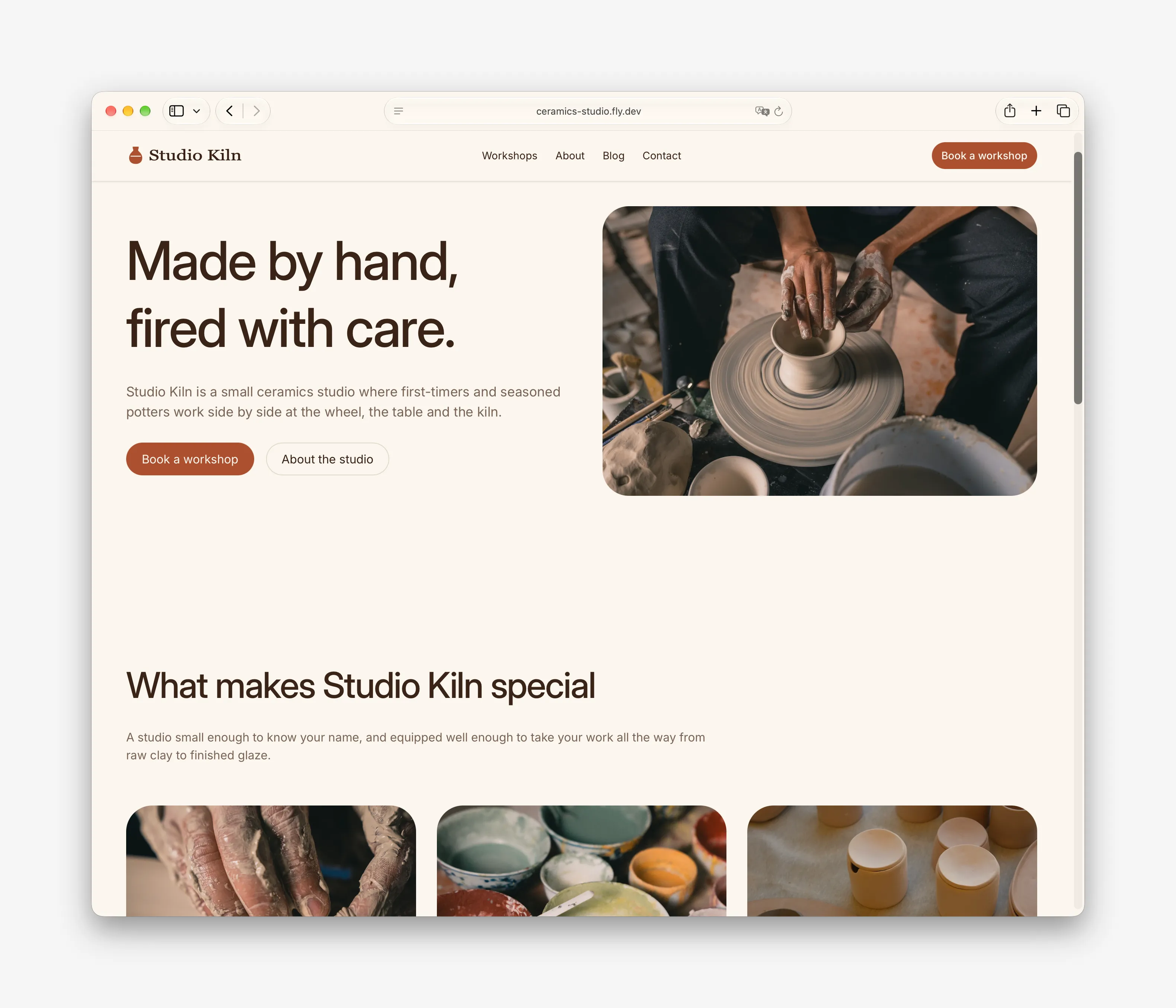
Turn this into a complete website for Studio Kiln, a small ceramics studio. Make the home page a landing page: a hero with a short tagline, three things that make the studio special, upcoming workshops, and a call to action to get in touch. Add an About, a Contact, an Imprint, a Privacy, and a Terms of Service page, and put a few useful links in the navigation and footer. Illustrate the pages with fitting photos from Unsplash or Pexels, which are free to use.
Claude reads your site's content model, writes the pages, and links them from the navigation and footer. Editable checks every page before storing it. Reload your site: it's a complete website now, just without a blog.
Claude's imprint, privacy policy, and terms of service are a starting point. Fill in your real details and have them checked before you rely on them.
6. Add a blog
Then ask:
Add a blog: a page at /blog that lists three posts, and write the three posts: a studio update, a glaze recipe, and a workshop recap. Link the blog from the navigation.
New pages start out unlinked, so asking Claude to add the blog to the navigation is part of the job.
7. Make it yours
Now it's your turn. Press ⌘ or Ctrl + E on your live site and change whatever you like. To swap a stock photo for one of your own, copy your photo and paste it onto the image. Your edits go live right away, and Claude picks up from there whenever you ask it to.
Last updated October 23, 2026